Self-service kiosk

Guests order and pay on their own. Your team cooks.

A self-service kiosk on any touchscreen: a menu with photos, extras and meal deals, payment on screen or by phone, tickets straight to the kitchen and the order number on the pickup screen. And it never forgets to offer a drink.

Any touchscreenPay at the kiosk or by phoneStraight to the kitchenPickup screenSeveral languages
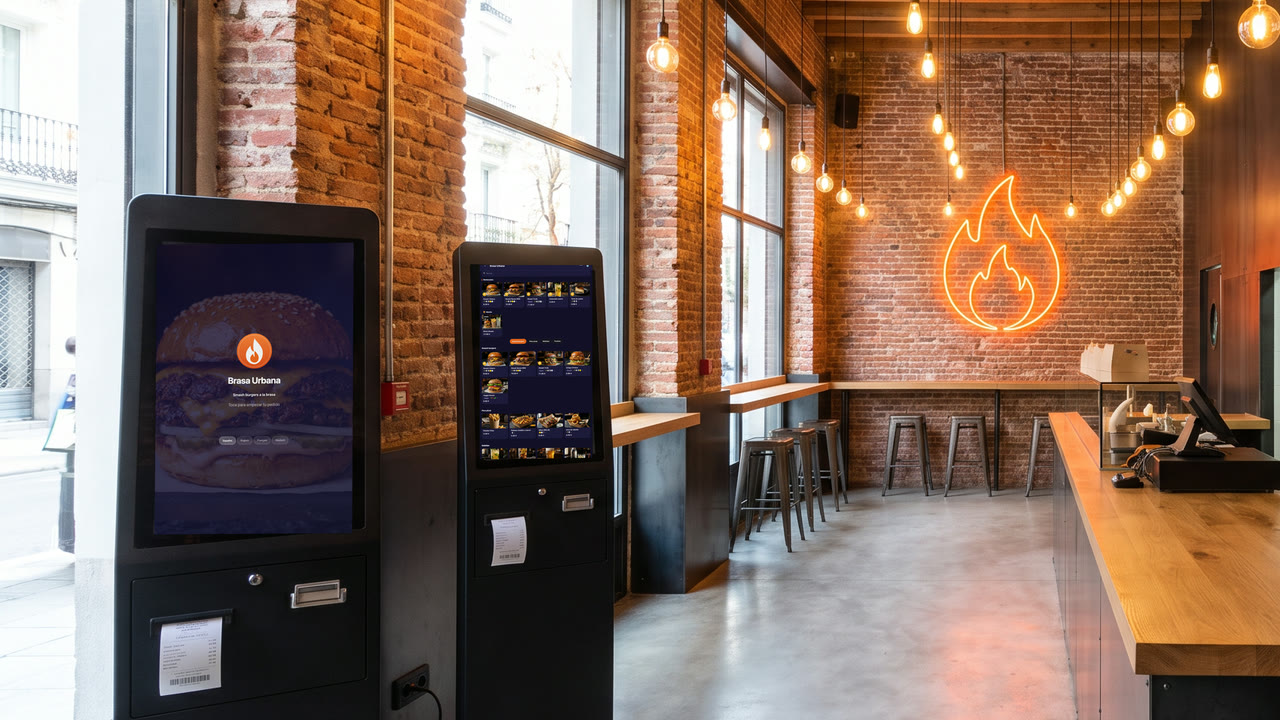
Two self-service ordering kiosks by the entrance of a burger restaurant, with the menu on screen.
Mood image made for this page, with the kiosk's real screens.
How a guest orders

From “tap to start” to their order number.

These are real screens of the Mesero kiosk, with an example menu in Spanish. No accounts, no downloads and no queue: the guest chooses, pays and waits for their number.

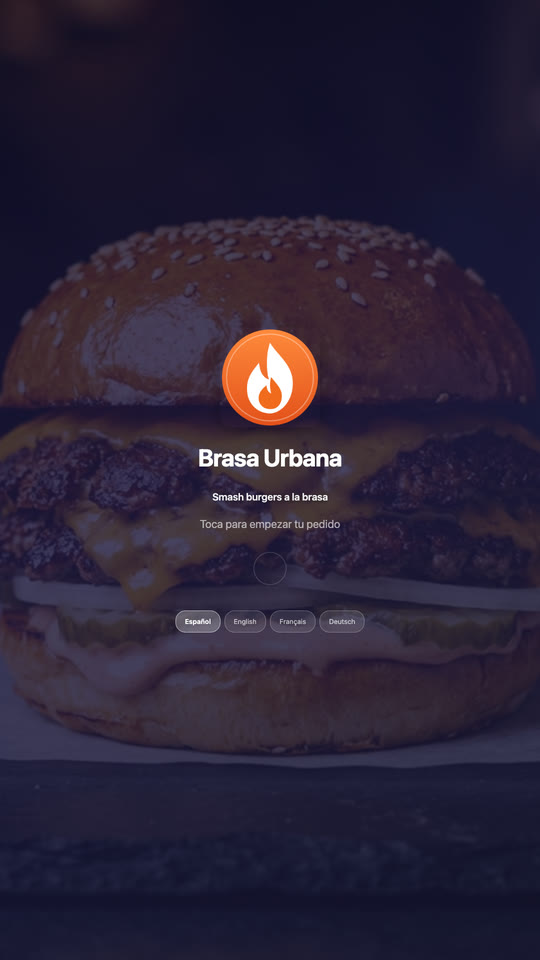
  1. Kiosk welcome screen with a burger photo, the venue's logo, “tap to start your order” and the language buttons. Tap to start

    The welcome screen cycles through your featured dishes and lets guests pick a language. Then: eat in or take away.

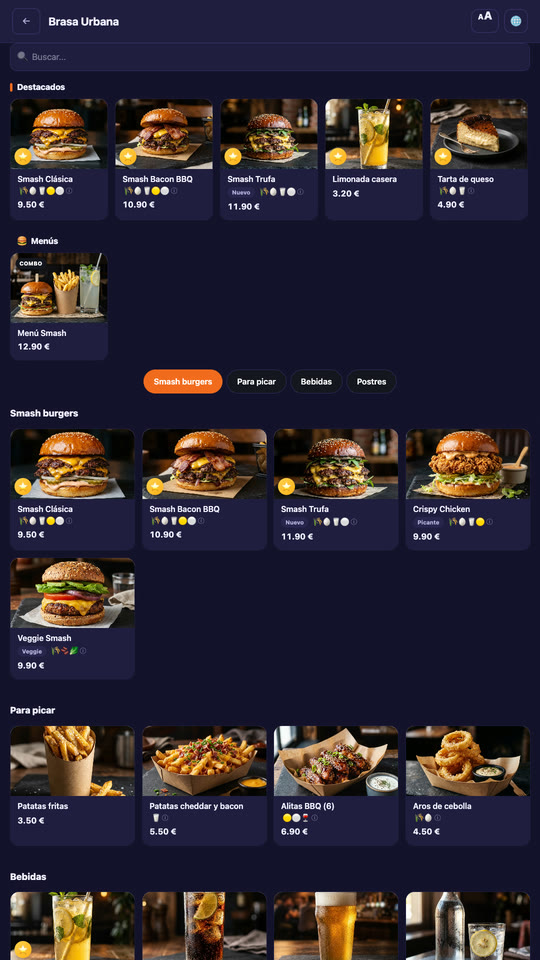
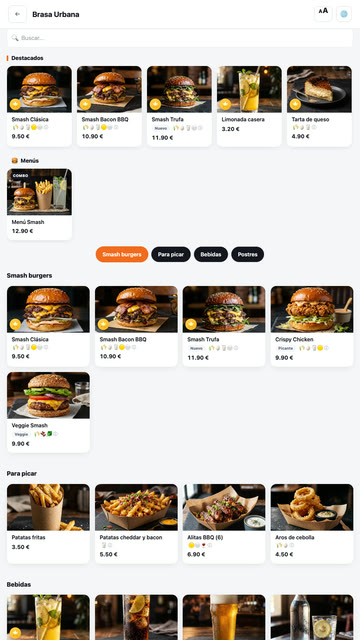
  2. Kiosk menu with featured items, meal deals and burgers with photos and prices. Choose from the menu

    Photos, allergens, extras, “no onion” and gluten-free bread. Required choices can't be skipped and the price adjusts itself.

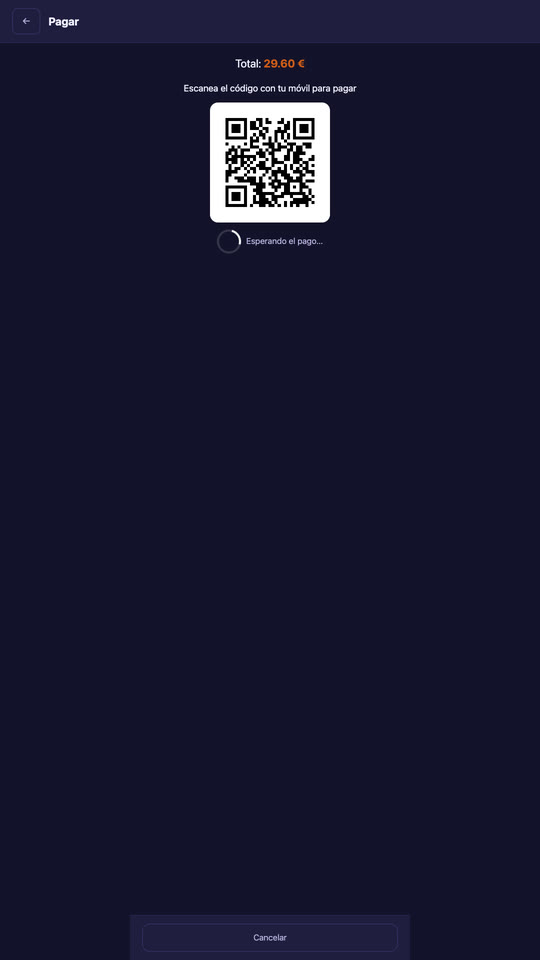
  3. Kiosk payment screen with a QR code to pay by phone, waiting for the payment. Pay

    By card on the screen or on their phone by scanning the QR code. Or, if you prefer, at the counter.

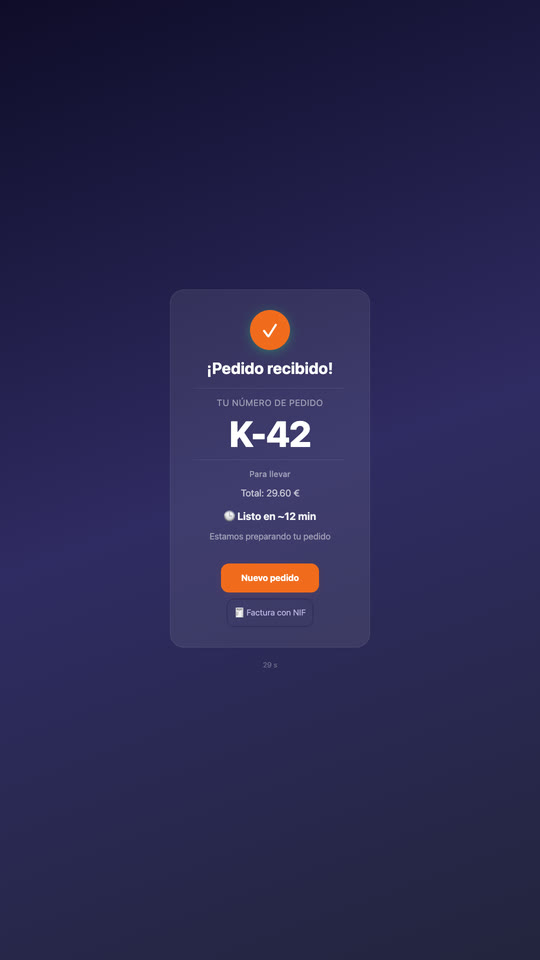
  4. Order received: order number K-42, takeaway, the total and the estimated time. Get their number

    With an estimated time. The receipt prints at the kiosk, with a QR code to request a full invoice.

Average spend

Offer the meal deal and the drink. Every time.

At rush hour, with a queue, nobody asks “make it a meal?” or “anything to drink?”. The kiosk asks every guest, at the right moment and without pushing: one question, one tap.

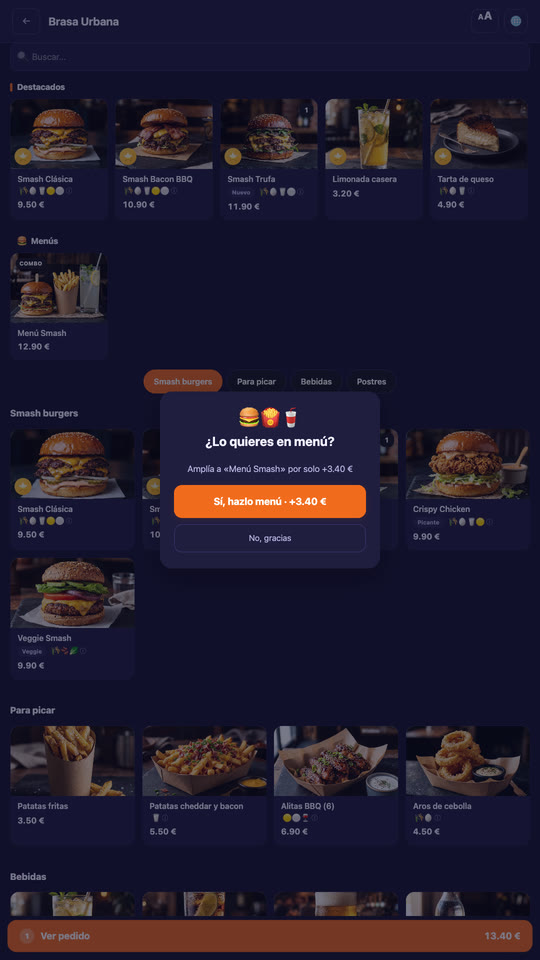
The kiosk asks whether to make the burger a meal deal for 3.40 euros more.
A burger that is part of a meal deal: the kiosk offers to complete it.
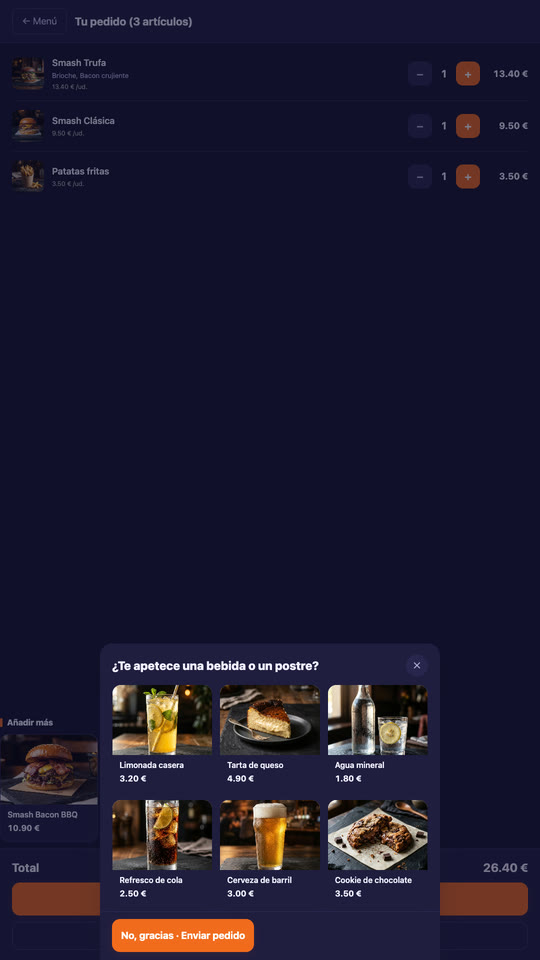
Before sending, the kiosk offers a drink or dessert with photos.
An order with no drink or dessert: before sending it, the kiosk offers some.
  • “Make it a meal?” When a dish is part of a meal deal and completing it adds value, the kiosk suggests it, with the price difference on screen.
  • “Fancy a drink or dessert?” If the order has neither, the kiosk shows up to six before sending it, your featured items first. Once per order.
  • Featured items at the top and on the welcome screen, plus an “add more” row when reviewing the order.
  • Your promotions (happy hour, 2-for-1, second unit) apply on their own, just like at the POS.
Kitchen and pickup

The order goes to the kitchen. The number goes on screen.

The kiosk is not a separate system: every order lands in Mesero like any other, with its kitchen ticket, its fiscal receipt and its payment in the till.

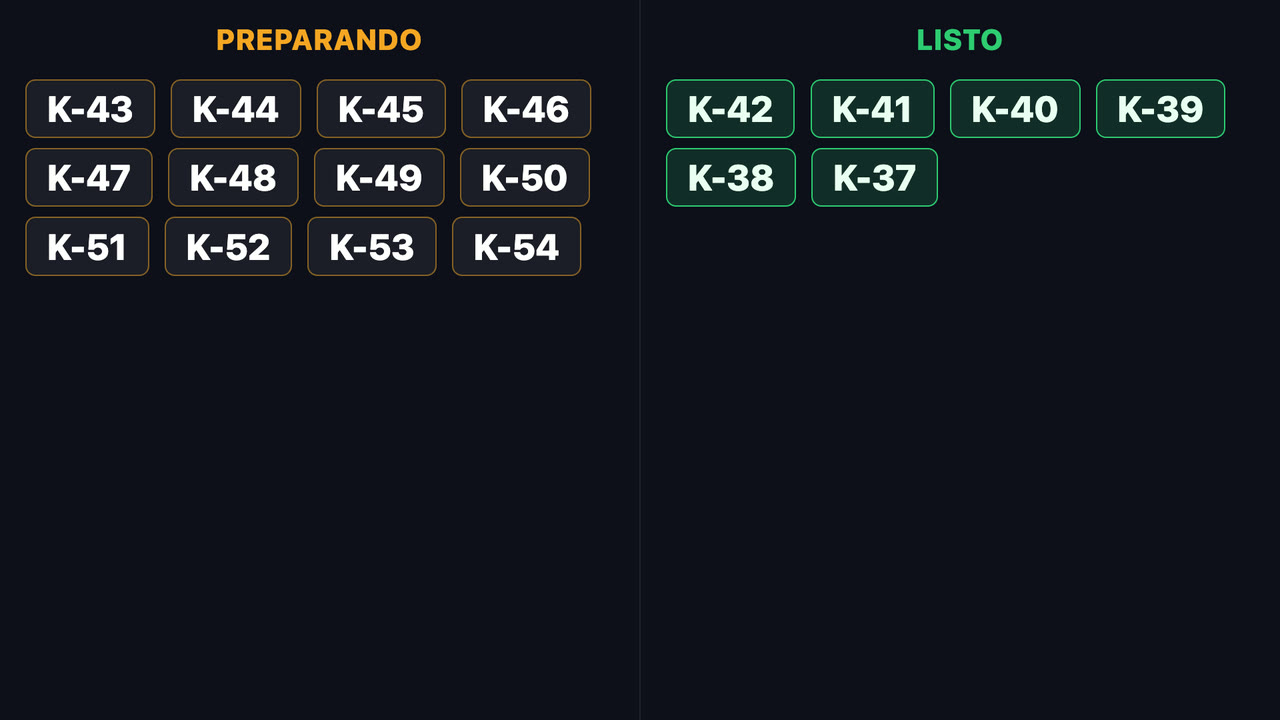
Pickup screen on a TV: order numbers being prepared on the left, ready ones on the right.
The pickup screen, on any TV with a browser: being prepared on the left, ready on the right. Numbers only, no names.

What happens after payment

  • Kitchen ticket. It prints on the kitchen printer as a kiosk order and appears on the kitchen display, with extras and notes.
  • Number on the pickup screen. When the kitchen marks it ready, it moves to Ready. Takeaway and counter orders show there too.
  • The guest's receipt prints on the kiosk's own printer, over USB or serial, or on your network receipt printer. Issued under VeriFactu, with a QR code for a full invoice.
  • In your POS like any order: in the till, in the Z report, in sales by dish and deducted from stock.
  • Pause orders in a moment if the kitchen is swamped: the kiosk says so instead of taking more.
Your brand

Five themes, four menu layouts and your logo.

The kiosk uses your POS menu (same dishes, prices, photos and allergens), so there is no second menu to maintain. What you change is how it looks.

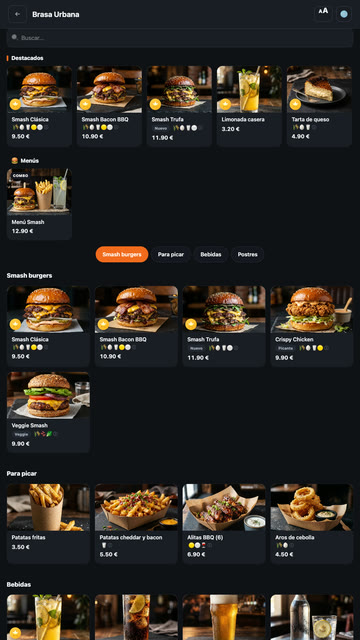
  • Kiosk in the Light theme.Light
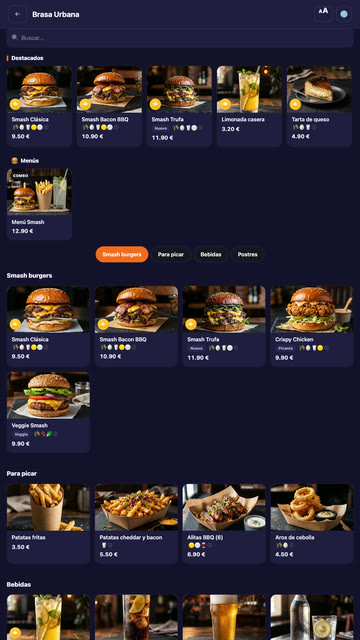
  • Kiosk in the Dark theme.Dark
  • Kiosk in the Midnight theme.Midnight
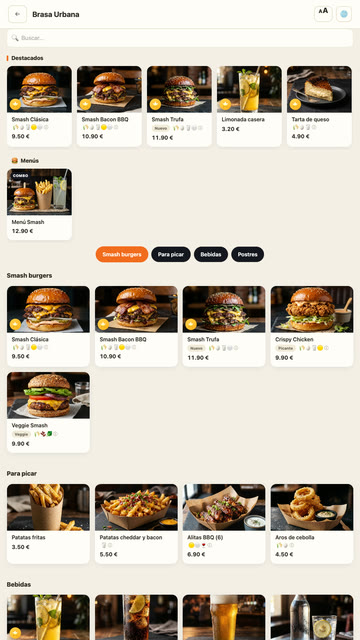
  • Kiosk in the Sand theme.Sand
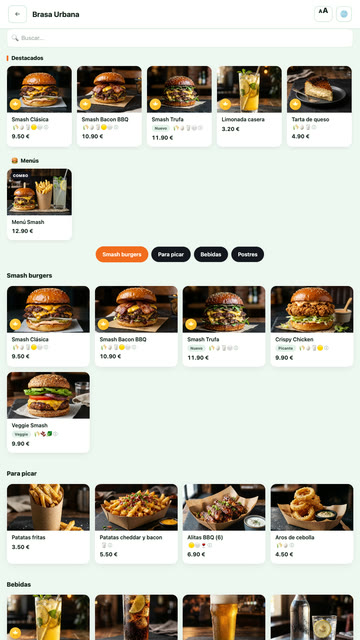
  • Kiosk in the Fresh theme.Fresh

Your look

Your logo or your name, a welcome title, a tagline and your brand colour. With dish descriptions, or just photo and price.

Your menu, your way

By category, as one list with an index, in tabs or as a grid. Your whole in-store menu, hiding from the kiosk any dish you choose.

For everyone

Several languages, a large-text button and a “still there?” prompt if someone walks away mid-order: the kiosk then returns to the welcome screen on its own.

Hardware

No proprietary kiosk, no rental contract.

The Mesero kiosk is a full-screen web page. It runs on the touchscreen you choose, and if you replace it one day, your kiosk stays the same.

Any touchscreen

A Windows floor kiosk, an Android tablet or an iPad, with the browser in kiosk mode so nobody leaves the menu. Run one or several: they all share the same menu.

A printer, if you want one

The guest's receipt prints on the kiosk's printer (USB or serial, from Chrome or Edge) or on your network receipt printer. Without a printer, the guest sees their number on screen.

Payment with Stripe

By card on the screen or on the guest's phone. And if you want guests to pay at the counter with your own card terminal, turn off required payment.

Price

Included in Pro and Enterprise.

The kiosk is not an add-on and it is not charged per screen: it comes with the plan, alongside the POS, the kitchen display and VeriFactu.

Pro — €79/month

€59 billed annually. Kiosk, online and pickup ordering, bookings, customer club and promotions.

Enterprise — from €149/month

€119 billed annually. Everything in Pro, for several venues with central visibility.

No per-kiosk fee

Add as many kiosks as you need, and put the pickup screen on the TV you already have.

See plans and pricing →

FAQ

What people ask before installing a kiosk.

What do I need to set up a kiosk?
A touchscreen with a browser (a Windows floor kiosk, an Android tablet or an iPad) and your menu in Mesero. Open your venue's kiosk address on it in full screen and you are done. To take payment at the kiosk you connect Stripe; to print the guest's ticket, a receipt printer.
Can I take payment with my own card terminal?
Payment at the kiosk runs on Stripe: by card on the screen, or on the guest's phone by scanning a QR code. If you prefer your own card terminal, turn off required payment: the guest orders at the kiosk and pays at the counter with their number.
What happens when a dish sells out?
Mark it as sold out in the POS and the kiosk shows it as sold out, so it can't be ordered. If it sells out while someone is ordering, the kiosk tells them and lets them remove it and send the rest.
Do kiosk orders reach the kitchen?
Yes. Every order prints on the kitchen printer as a kiosk order and appears on the kitchen display, like any other order. When the kitchen marks it ready, its number moves to Ready on the pickup screen.
Can guests ask for a full invoice?
Yes. When they finish, the kiosk shows an invoice button with a QR code: the guest scans it and requests a full invoice with their tax ID from their phone. The receipt is issued under VeriFactu, as in the POS.
Which languages can guests order in?
Every language your menu is translated into. Guests pick theirs on the welcome screen or with the globe button, and the menu and the kiosk's own texts switch with them.
How much does the kiosk cost?
It is included in the Pro and Enterprise plans, with no per-kiosk fee: add as many as you need. You can try it free for 90 days.
Next step

Put your menu on a kiosk this week.

90 days free, no card. If your menu is already in Mesero, the kiosk already has it: all you need is the screen.

AnytouchscreenWindows, Android or iPad.
Twoways to payOn screen or by phone.
Straightto the kitchenPrinter and kitchen display.
Their numberon screenPreparing and ready.